Hotel Lobby AI Video: How to Recast a Clip
Make a Hotel Lobby AI video with your own source clip and two reference photos. Learn role mapping, input selection, review checks, and safe sharing.
 AIVision Team
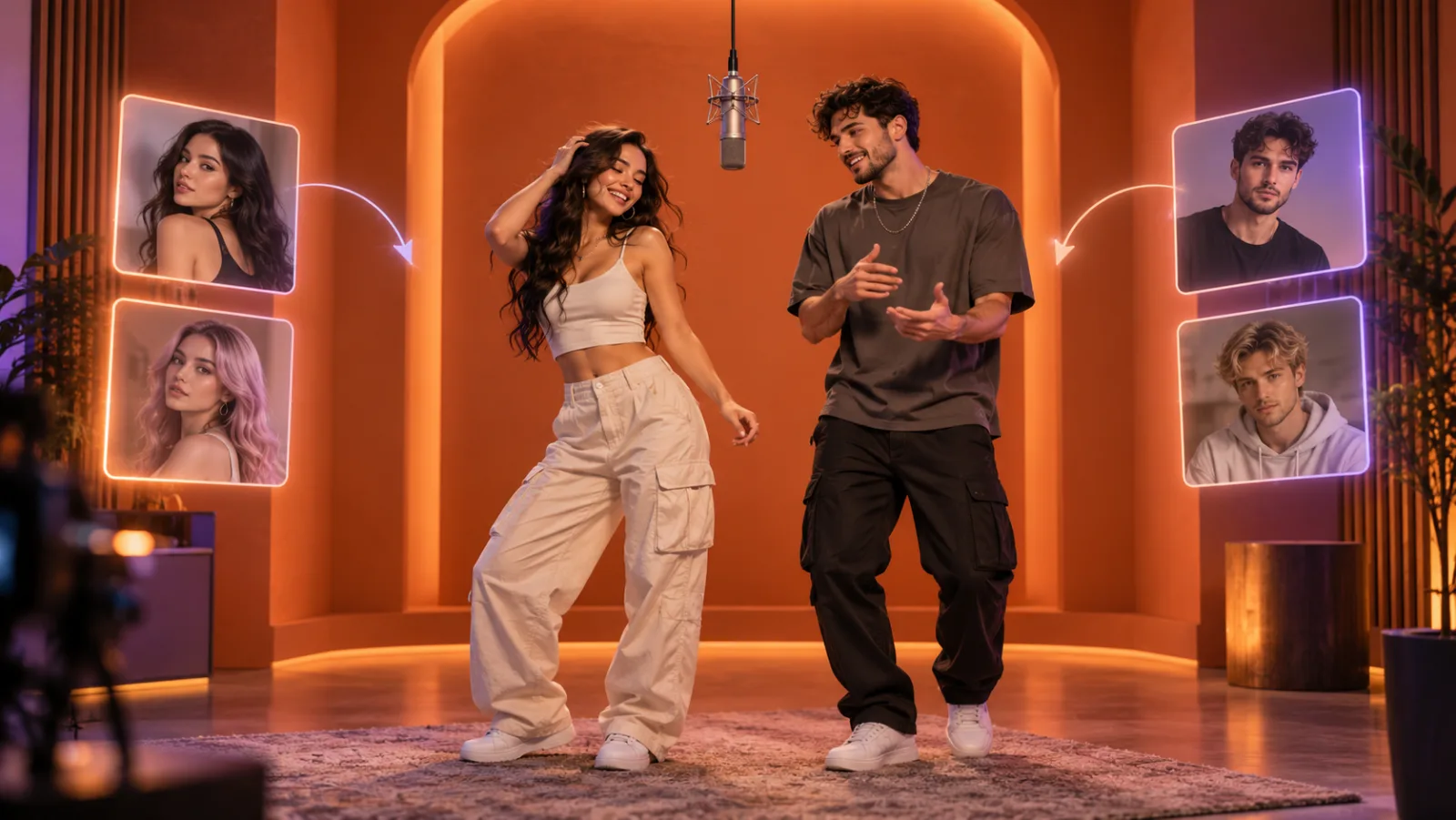
The Hotel Lobby AI video format is a simple creative idea: keep a short clip's staging, camera movement, and rhythm, then recast its roles with people or characters you choose. It works best when you treat it as a role-mapping task—not a face filter.
This guide shows a practical AIVision workflow for making a two-role video from a source clip you are allowed to use. It also explains the decisions that usually determine whether the result feels intentional or unstable.
What makes a Hotel Lobby-style AI video work?
The recognizable format has three layers: a short source video, a fixed set of roles in the frame, and new reference images for those roles. AIVision uses the source clip as the visual plan. Your reference images tell the generation which new identity belongs in each role.
That distinction matters. The source video supplies the scene, framing, timing, and performance beats. The reference photos supply identity. Trying to make one input do both jobs is a common cause of drifting faces and mixed-up characters.
For a useful first test, choose a 1–15 second MP4, MOV, or WEBM clip with two clearly visible people. In AIVision's Hotel Lobby workflow, upload the source video, add one clear reference photo for each replacement role, and use the optional prompt only for small creative direction.
Before you generate: make a cast map
Write down who appears in the source video and where each person is most visible. A two-column cast map prevents a surprisingly common failure: providing good photos but assigning them to the wrong visual role.
| Source role | Reference image to use | What to check | | --- | --- | --- | | Left or first performer | One authorized, single-person portrait | Face remains visible during turns and close-ups | | Right or second performer | A different authorized, single-person portrait | Hairstyle, clothing, or silhouette stays distinct |
If the clip includes a reflection, a fast hand movement, or a tight cutaway, call it out before generating. These are the moments most likely to expose an unclear mapping.
Choose reference photos for identity, not aesthetics
A flattering photo is not necessarily a useful video reference. Choose images that make the person's identity easy to distinguish at the scale and angle seen in the clip.
A reliable input set
- Use one person per image. Group shots make it unclear which face is the intended subject.
- Keep the face well lit and unobstructed. Sunglasses, hands over the face, strong shadows, and beauty filters remove useful identity detail.
- Prefer a front-facing or near-front-facing portrait when the source has close-ups.
- Make the two roles visually distinct when possible. Different hair, clothing, or overall silhouette helps the model preserve the assignment.
- Use only images you are authorized to use. Get permission from anyone whose likeness appears in the result.
When one photo is not enough
If the source moves from a wide shot to a close-up, use a cleaner, higher-detail reference rather than adding random extra images. Add another image only when it shows the same person from a useful angle. Multiple nearly identical filtered selfies tend to reinforce the same weak signal instead of improving identity consistency.
A practical Hotel Lobby AI video workflow
- Upload a short source video. Keep it to 1–15 seconds and verify that both intended roles are visible. You should be able to point to each role without guessing.
- Add two separate reference photos. Assign one clear photo to each person or character. The expected result is a cast swap while the original scene and motion remain the visual blueprint.
- Use the optional prompt sparingly. Ask for a specific adjustment such as a wardrobe mood or character treatment. Do not restate the whole clip; the video already supplies the camera and action reference.
- Generate and inspect the whole result. Do not judge only the opening frame. Watch every cut and turn before downloading or posting.
If an input fails to upload or the video duration falls outside the allowed range, shorten or re-export the source before trying again. If a role swaps halfway through the clip, replace the weaker reference image rather than trying to solve an identity problem with a longer prompt.
Review the moments that matter
The fastest review method is to pause at the transitions where the model has the least visual certainty. This is more useful than a vague “looks good” pass.
| Moment to review | What good looks like | What to do if it fails | | --- | --- | --- | | First second after a cut | The correct person is already established | Use a clearer, more frontal portrait for that role | | Microphone or hand overlap | Fingers and face remain separate | Choose a source with less occlusion or shorten the clip | | Side turn or profile | Identity stays recognizable | Add a clean reference with a similar useful angle | | Two people in one frame | Roles do not merge or trade places | Increase visual contrast between the two reference subjects | | Final frame | Identity, scene, and motion still agree | Regenerate after changing one input at a time |
This one-variable-at-a-time approach is deliberately slower than changing every setting together, but it makes the cause of an improvement clear. Keep the source clip fixed while testing new reference images; then you can compare renders fairly.
What to preserve—and what to change
The strongest results preserve the part of the source video that carries the joke or performance: camera motion, pacing, framing, and the relationship between the roles. Change the cast, not the entire visual grammar.
That also makes the output easier to direct. A pet duo, fictional characters, or two friends can work because the role structure stays readable. A source clip with four overlapping people, tiny faces, or rapid scene changes may be better suited to a different concept than a two-role recast.
Consent, rights, and platform labels
Use your own footage, licensed footage, or material you otherwise have permission to transform. Do the same for every reference image. A generated video may still raise copyright, trademark, likeness, music, or platform-policy questions depending on the source and how you publish it.
Before sharing, check the destination platform's current rules for synthetic-media disclosure and add an AI-generated label when required. Avoid presenting an AI-made performance as real footage of a person who did not agree to participate.
Frequently asked questions
Do I need to write a detailed prompt for a Hotel Lobby AI video?
No. The source video already supplies the composition, motion, and timing. Use the optional prompt for a small, concrete adjustment; clear source and reference media have more impact on role consistency than a long description.
Why did the two people get mixed up in my result?
Role confusion usually comes from group photos, similar-looking reference subjects, obstructed faces, or a source clip where the people overlap. Replace each role with a separate, clear portrait and make the subjects easier to distinguish.
Can I use pets or fictional characters instead of people?
Yes, provided you have the rights to the source material and character assets. Pick references with a clear silhouette and recognizable features so each role remains distinct through the clip.
What should I do when a face changes after a camera cut?
Start by replacing that role's reference with a sharper, well-lit portrait that better matches the relevant angle. Recheck the full video after regenerating, especially the first moment after each cut.
Make your own two-role video
Start with a short clip you can use, map its roles, then upload two clear references to the Hotel Lobby AI Video tool. For other visual workflows, explore the AI Video Generator or return to the AIVision blog for more practical guidance.